-
- No Comments
- July 20, 2026

Google Analytics 4 Guide for Beginners: Easy Setup
Why This Google Analytics 4 Guide Matters in 2026
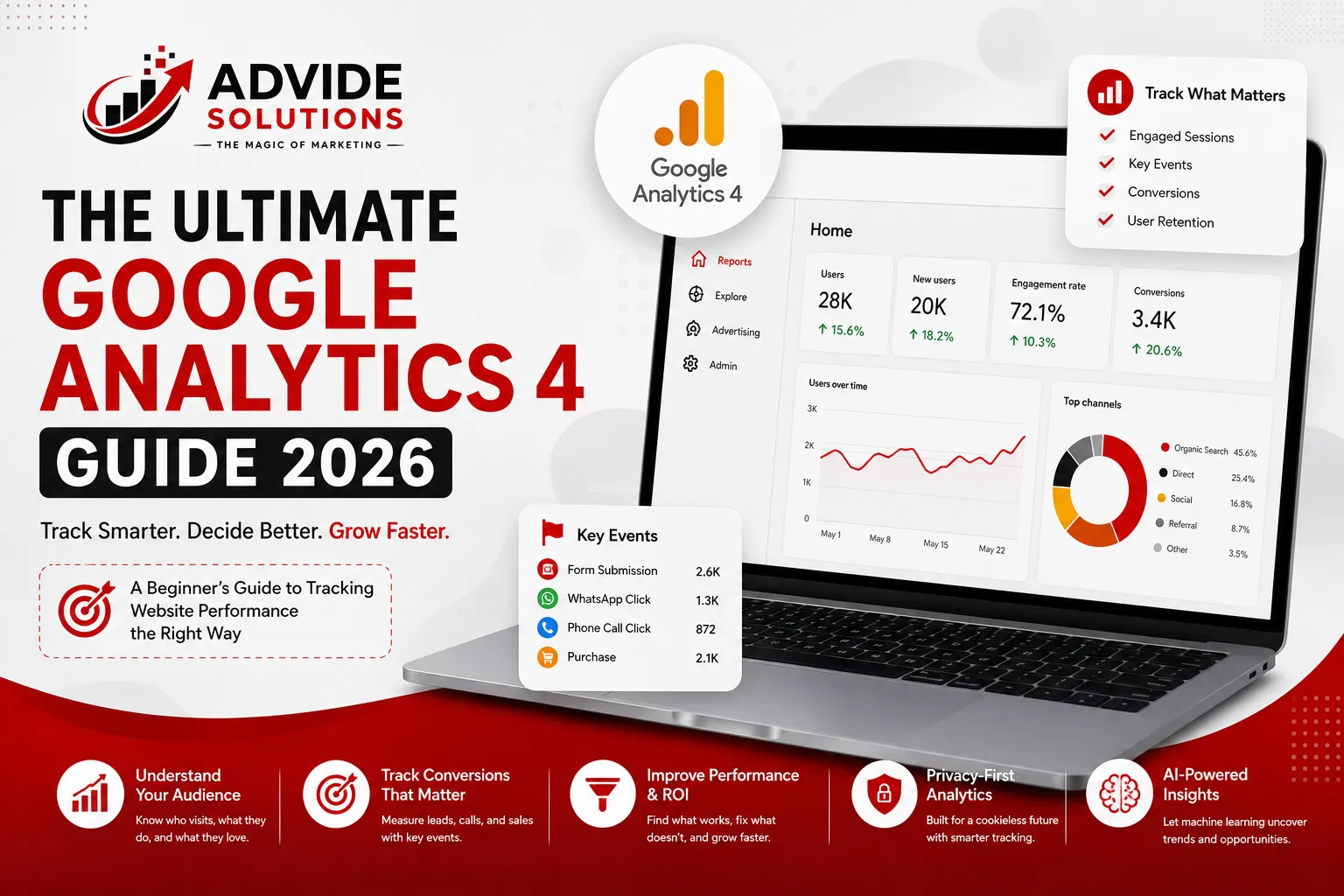
This Google Analytics 4 Guide breaks down everything a beginner needs to start tracking website performance the right way. Google Analytics 4, or GA4, replaced Universal Analytics as the default tool for measuring traffic. Google shut off the old platform for good in 2024. If your business still relies on guesswork instead of real data, this guide can help. It walks you through setup, key reports, and the mistakes to avoid from day one.
Jaipur businesses that switch to GA4 early gain a real edge. You see which campaigns bring paying customers, not just visitors. You catch drop-offs in your checkout or contact form before they cost you leads. Advide Solutions builds this reporting habit into every client account. This Google Analytics 4 Guide gives you the same starting point.
What Is Google Analytics 4?
GA4 tracks every visit as a series of events instead of sessions. A page view, a button click, a video play, a form submission: each one counts as its own event. This event-based model gives you far more detail than the old session-based system ever offered.
Google built GA4 around three goals: privacy, cross-device tracking, and prediction. It follows a user across a phone, a laptop, and a tablet without relying on cookies alone. It also uses machine learning to fill data gaps. Cookie restrictions and privacy laws like GDPR create many of those gaps.
GA4 vs Universal Analytics: What Changed
Universal Analytics organized data around sessions and page views. GA4 scraps that structure entirely. Bounce rate disappeared too. GA4 replaced it with engagement rate, a metric built around sessions that last 10 seconds or more, include two or more page views, or trigger a conversion.
Universal Analytics stopped collecting new data in mid-2023. Google removed access to old UA reports completely in 2024. Any business still quoting UA numbers is looking at outdated data. GA4 stands as the only option now, so beginners don’t need to learn two systems, just this one. This Google Analytics 4 Guide sticks to GA4 only, so every number below reflects the current platform.
Setting Up Your GA4 Property Step by Step
Setting up GA4 takes less time than most beginners expect. Sign in to analytics.google.com with a Google account, then create a new property under your business name. Choose your industry category, time zone, and currency. Google then generates a unique Measurement ID that starts with “G-“. For the exact click-by-click screens, follow Google’s official setup instructions. They stay current as the interface changes.

Create Your Account and Add the Tracking Code
Paste your Measurement ID into your website’s header. You can also connect it through Google Tag Manager for more control. WordPress users can skip the code entirely and use a plugin like Site Kit by Google instead. Once you finish installing it, check the Realtime report to confirm GA4 receives live data from your site.
Understanding the GA4 Interface
The left-side menu holds four main areas: Reports, Explore, Advertising, and Admin. Reports gives you pre-built snapshots of traffic, engagement, and monetization. Explore lets you build custom analyses, like a funnel showing exactly where visitors drop off before checkout.
Admin is where you manage data streams, users, and conversion events. Spend your first week in GA4 simply clicking through each report. That way, you know where to find things when a client or manager asks a question. This Google Analytics 4 Guide recommends starting with Reports before you touch Explore.
Key Metrics This Google Analytics 4 Guide Recommends You Track
Skip vanity metrics like raw pageviews. Focus on engaged sessions, average engagement time, and conversion rate instead. These numbers tell you whether visitors actually care about your content, not just whether they clicked a link.
- Engaged sessions — sessions lasting 10+ seconds or ending in a conversion
- Engagement rate — GA4’s replacement for bounce rate
- Key events — GA4’s term for conversions, like form fills or purchases
- User acquisition — the channel that actually brings paying customers
- Retention — how many visitors return within 30 days

A Practical Google Analytics 4 Guide to Key Events
GA4 calls conversions “key events” now. Some events fire automatically the moment you install GA4, including page_view and session_start. Enhanced Measurement adds scroll tracking, outbound clicks, and file downloads without extra setup.
Custom events cover everything else. Head to Admin, then Events. Mark any event that matters to your business as a key event: a WhatsApp click, a phone number tap, or a completed quote form. This single step turns GA4 from a traffic counter into a lead-tracking tool. This Google Analytics 4 Guide treats key events as the single most important part of setup.
Common Beginner Mistakes to Avoid
Most beginners make the same three errors. First, they never mark key events, so GA4 shows traffic but no proof of results. Second, they ignore data retention settings. These default to just two months for some reports and quietly delete older data.
Third, they compare GA4 numbers directly against old Universal Analytics reports. The two platforms measure sessions and users differently, so a like-for-like comparison rarely matches. Treat GA4 as a fresh baseline instead of chasing old numbers. This Google Analytics 4 Guide flags data retention as the most overlooked setting of the three.
New GA4 Features Worth Knowing in 2026
Google added an AI Assistant channel to GA4 in May 2026. It lets you see traffic that arrives from tools like ChatGPT and Gemini, instead of lumping that traffic into generic referrals. This matters more every month as people research purchases through AI chat instead of a search bar.
Generated insights now sit right on the GA4 home screen too. They flag unusual spikes or drops in plain language before you even open a report. Beta features like cross-channel budgeting and improved attribution reporting keep rolling out, so check the Admin panel every few months for new tools. This Google Analytics 4 Guide will get updated as Google rolls out more of them.
Frequently Asked Questions About This Google Analytics 4 Guide
Is Google Analytics 4 free to use?
Yes. GA4 remains free for websites of any size. Google charges only for GA4 360, an enterprise tier built for companies that need higher data limits and dedicated support.
How long before GA4 shows accurate data?
GA4 shows Realtime data within seconds, but standard reports need 24 to 48 hours to process fully. Give your property at least two to four weeks before you draw conclusions from trends. Early data volumes tend to run low.
Can I still see my old Universal Analytics reports?
No. Google removed access to Universal Analytics reporting in 2024. If you exported your historical UA data before the shutdown, you can still reference those files. You just can’t pull fresh reports from the old interface anymore.
Do I need Google Tag Manager for GA4?
Not strictly. You can paste your GA4 code directly into your site, and WordPress users can install it through a plugin. Google Tag Manager becomes useful once you track multiple custom events. It lets you add or edit tags without touching your website code each time.
What is the biggest GA4 mistake beginners make?
Skipping key events. Without marking at least one conversion, such as a form submission or a call click, GA4 only tells you how many people visited. It won’t tell you whether your website actually generates business.

Conclusion: Put This Google Analytics 4 Guide to Work
GA4 rewards businesses that set it up properly and check it often. Create your property, mark your key events, and give the data a few weeks to stabilize. Skip the guesswork and let real numbers guide your next marketing decision.
Need help turning GA4 data into an actual growth plan? Our SEO specialists in Jaipur can audit your setup and fix tracking gaps. Our digital marketing team then builds campaigns around the numbers that matter. Reach out to Advide Solutions and start tracking what actually moves your business forward.


